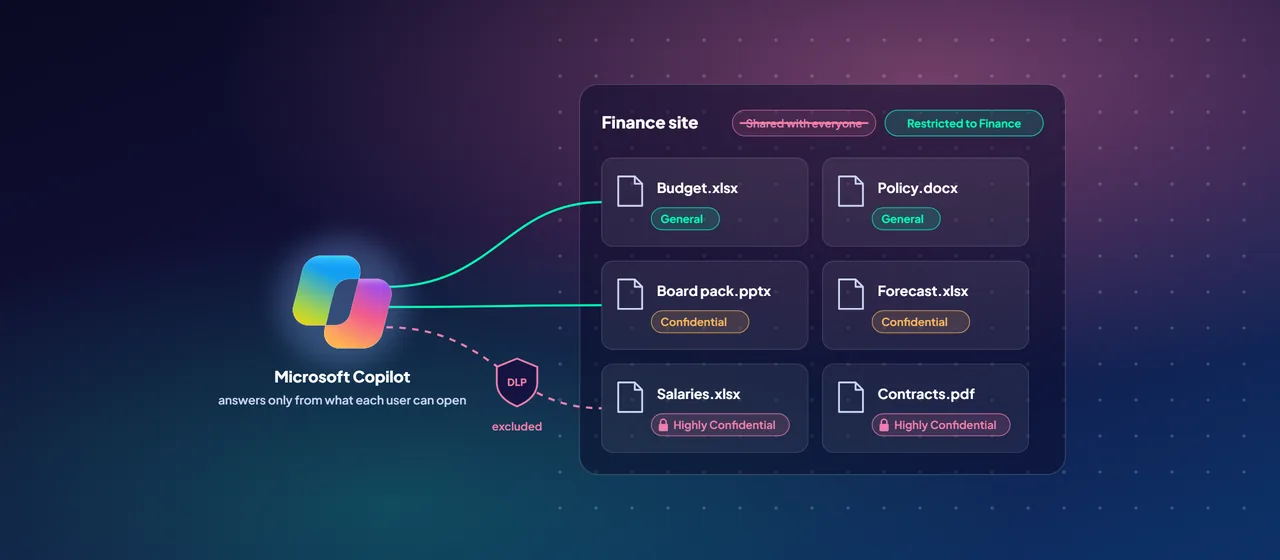
Microsoft Copilot doesn't create new access to your data. It answers using content each user can already open. That sounds reassuring until you look at how that access built up over the years: sites shared with "everyone", sharing links that never expire, HR folders inherited by whole departments. Nobody searched for those files before, so nobody noticed.
Copilot changes that. A plain-language question can surface a salary spreadsheet or a board paper in seconds, to someone who technically had access all along. The risk isn't the AI. It's oversharing that Copilot makes visible. The fix is to find it, contain it and put guardrails in place before, or alongside, the rollout.
How Copilot uses permissions and labels
It helps to be precise about what Copilot respects. Microsoft's data protection architecture for Copilot sets out these rules:
- Permissions. Copilot can only summarize or reference content the user is authorized to access.
- Encryption. When a sensitivity label applies encryption, the user needs the EXTRACT and VIEW usage rights for Copilot to work with that content.
- Label inheritance. When Copilot creates new content from labeled sources, the highest-priority label is inherited where supported.
- Audit. Microsoft 365 can capture audit records for Copilot prompts, responses and referenced content, and keep interaction data for eDiscovery and retention.
So there are two levers. Fix who can access what, and label what matters so that policy can act on it.
- 1A user asks
A prompt in Word, Teams or Microsoft Copilot Chat.
- 2Permissions
Only content this user can already open.
- 3Label and DLP
Encrypted or excluded labels are held back.
- 4Answer
Grounded in what passed, with its sources cited.
Find the oversharing first
Two sets of tools do the discovery work.
Data risk assessments in Microsoft Purview Data Security Posture Management (DSPM). DSPM is Purview's central place for data risk across Microsoft 365, AI apps and agents. Microsoft has folded the earlier "DSPM for AI" into it, and that version is now labeled classic. A default data risk assessment runs weekly on your top 100 SharePoint sites by usage. It shows sensitive data found, items shared with anyone, and how access is granted. Custom assessments let you target specific sites or users, and item-level scanning, currently limited to 10 SharePoint sites per assessment, lists individual overshared items with their owners and labels. From each result you can create a DLP policy, restrict the site from Copilot, start auto-labeling, remove a sharing link, or notify the site owner.
SharePoint Advanced Management (SAM). SAM is included when at least one user in your organization has a Microsoft Copilot license, on top of an eligible Microsoft 365 or Office 365 base subscription. Some features still need the separate SAM Plan 1 add-on. The most useful parts for Copilot readiness are:
- Data access governance reports: permission state across sites, sites with the most new sharing links, content shared with "Everyone except external users", and a sensitivity label snapshot.
- Site access reviews: send the review of an overshared site to its owners, who know whether the access is right.
- Site ownership and inactive site policies: find sites with no accountable owner and sites nobody uses.
Start with the sites that combine broad access with sensitive content. Those are your first remediation list.
Contain high-risk sites while you fix them
Fixing permissions properly takes weeks. Two SharePoint controls let you reduce exposure in the meantime.
Restricted Content Discovery hides a site's content from organization-wide search and Copilot. It doesn't change permissions. Users can still open content they have access to, and can still find files they own or recently worked on. It also removes Copilot entry points from the site. Microsoft describes it as a temporary control and warns against overuse, because it reduces what Copilot can draw on. You can apply it to up to 20,000 sites. It doesn't work on OneDrive. For very large sites, over 500,000 items, it can take more than a week to take full effect.
Restricted access control limits a site, or a OneDrive, to members of up to 10 Microsoft 365 or security groups. Users outside those groups can't open the content, even with a direct share or a link, and Copilot and search honor that. Private and shared channel sites are separate sites, so configure them one by one.
Use Restricted Content Discovery to buy time. Use restricted access control where a site should permanently belong to a defined group.
Label what matters, then let DLP enforce it
Discovery and access fixes deal with today's mess. Sensitivity labels and data loss prevention (DLP) keep it from coming back.
Microsoft Purview Information Protection labels classify content and can apply encryption. If you don't have a taxonomy yet, Purview can create a default set of labels, and auto-labeling policies can label content that contains sensitive information types. Keep the taxonomy short. Four or five labels that people understand beat fifteen they ignore.
DLP then adds Copilot-specific controls. A DLP policy that targets Copilot can:
- Exclude labeled files and emails from Copilot responses. The item may still appear in citations, but Copilot doesn't use its content.
- Block web search when a prompt contains sensitive information types, so that data isn't sent to external search. Copilot still answers from internal sources.
- Block prompts that contain sensitive information types, such as card or passport numbers. This is in preview.
- Exclude external email from grounding, which helps against prompt injection. This is also in preview.
Two limits are worth knowing. DLP can't scan files that users upload directly into a prompt. And policy changes can take up to four hours to reach Copilot.
A practical readiness sequence
Microsoft's deployment blueprint for a secure Copilot foundation groups the work into three pillars: remediate oversharing, set up guardrails, and meet regulations. Here's a sequence that follows it:
- Turn on auditing and review DSPM. Confirm Purview Audit is on, then look at the default data risk assessment and the DSPM objectives for Copilot and oversharing.
- Run the SAM reports. Pull the permission state, sharing link and "Everyone except external users" reports. Combine them with the DSPM results into one list of high-risk sites.
- Contain the worst sites. Apply Restricted Content Discovery or restricted access control to the top of the list.
- Start site access reviews. Ask owners to fix membership and remove broad shares. Assign owners to orphaned sites and archive inactive ones.
- Publish labels and auto-labeling. Deploy a short taxonomy and auto-label the most sensitive information types.
- Add Copilot DLP policies. Exclude your most sensitive labels from Copilot processing and block sensitive data in web searches. Test in simulation mode first.
- Pilot, then widen. Roll Copilot out to a pilot group, watch activity and policy matches in DSPM, and lift temporary restrictions as sites are cleaned up.
Some items will take longer, such as a broad permissions cleanup. That's fine. The goal is to cut the biggest exposure first and keep improving, not to wait for a perfect tenant.
Where to start
Start with a Copilot data readiness assessment. Review the DSPM data risk assessment and the SharePoint access reports, agree the first 20 to 50 sites to contain or fix, and draft a label and DLP baseline before the pilot begins. CloudGate runs these assessments with customer security and collaboration teams.
Talk to an architect