The Azure bill usually arrives before anyone has asked the right questions. Finance sees a number that grew, engineering sees a platform that works, and nobody can say which team, product or decision drove the increase. By the time the question lands, the month is closed and the money is spent.
That is not a tooling gap. Azure already gives you budgets, alerts, cost allocation and optimization recommendations at no extra charge. What is usually missing is a practice: agreed ownership, clean data and a regular routine that turns cost reports into decisions. This post covers the tools, in the order to put them to work, and a monthly review to keep them honest.
FinOps is a practice, not a project
Microsoft describes FinOps as an operational framework and cultural practice that brings engineering, finance and business teams together to make timely, data-driven decisions about cloud spend. Microsoft is a member of the FinOps Foundation, the non-profit that maintains the FinOps Framework.
Microsoft's guidance also says the goal of FinOps isn't to save money, but to get the most business value from the cloud. A cost that rises because a product is growing is healthy. A cost that rises because a test environment was never switched off is not. Telling them apart quickly needs three things: every cost mapped to an owner, alerts that fire during the month rather than after the invoice, and a steady flow of waste removed before commitments are bought.
Visibility: budgets, alerts and allocation
Budgets and alerts
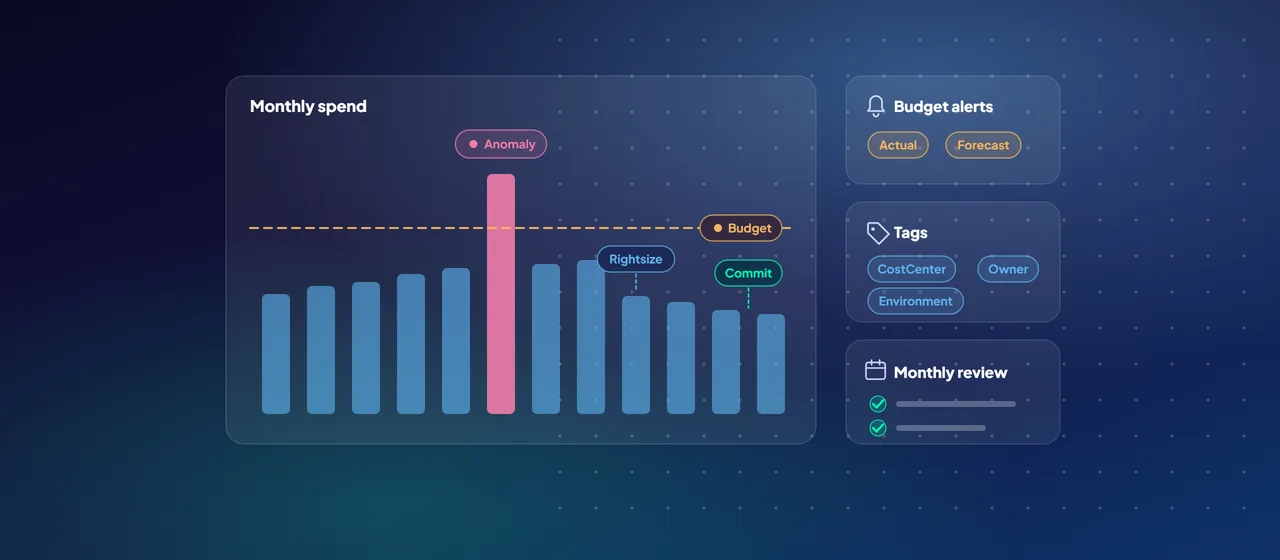
Microsoft Cost Management budgets let you set a monthly, quarterly or annual amount at a management group, subscription or resource group scope, as well as billing scopes such as an Enterprise Agreement department or a Microsoft Customer Agreement billing profile. You can filter a budget to a service, a resource group or a tag, so each team can have its own.
Three details matter in practice:
- Actual and forecast alerts. Each budget supports up to five thresholds. Actual-cost alerts fire when spend crosses a percentage; forecast alerts fire when the projection says it will. Use both.
- Budgets don't stop anything. Resources aren't affected and consumption isn't stopped. For automation, attach an action group (supported at subscription and resource group scope) to trigger a runbook, function or webhook.
- Data lags. Cost data typically arrives within 8 to 24 hours and budgets are evaluated every 24 hours. A budget is a daily check, not a real-time meter.
Add anomaly alerts on top. Cost Management compares each subscription's daily usage with a forecast built from the last 60 days and flags unusual spikes or drops. An anomaly alert rule, set at subscription scope, emails the owners when that happens.
Tagging and allocation
Budgets are only as useful as the grouping behind them. Tags such as CostCenter, Application, Environment and Owner are the usual answer. Three things trip teams up:
- Resources don't inherit tags from their resource group or subscription by default. Use Azure Policy tag policies to require tags at creation or copy them down.
- Cost Management tag inheritance is a separate setting for EA, MCA and MPA billing accounts. It applies subscription and resource group tags to usage records (not to the resources themselves) within 8 to 24 hours, back to the start of the current month. It is the quickest way to fix reporting for resources that were never tagged.
- Tags are plain text. Microsoft warns they can surface in cost reports and logs, so never put sensitive values in them.
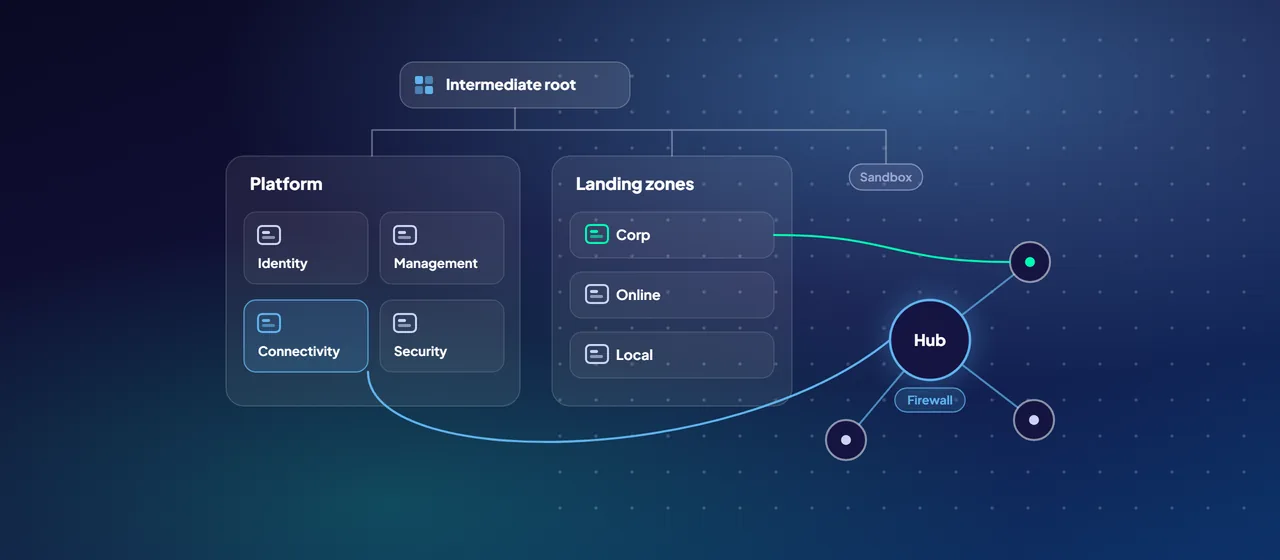
For shared platforms such as a hub network or a central firewall, use cost allocation rules. Available to EA and MCA customers, they redistribute costs from source subscriptions, resource groups or tags to targets, evenly, by a fixed percentage, or in proportion to the targets' compute, storage, network or total cost. Allocation changes what teams see in Cost analysis and budgets; it doesn't change the invoice, and it doesn't cover purchases such as reservations and savings plans.
Reservations or savings plans: commit on a clean baseline
Both are one- or three-year commitments that lower your rate in exchange for predictability. They differ in what you commit to.
- Azure Reservations commit to a specific resource type, size and, where relevant, region. They cover a long list of services, including virtual machines, Azure SQL Database, Azure Cosmos DB and Blob storage capacity. Microsoft states reservations can cut costs by up to 72% compared with pay-as-you-go. You can exchange a reservation for another of the same type, and refunds are allowed within a limit Microsoft sets per 12-month rolling window.
- Savings plans commit to a fixed hourly spend. Savings plan for compute applies across regions to services such as Virtual Machines, App Service, Azure Functions Premium, Container Instances and Container Apps. Microsoft now also offers a savings plan for databases covering Azure SQL, Azure Database for PostgreSQL and MySQL, Azure Cosmos DB and more. Savings plans can't be canceled or refunded.
Microsoft's guidance is simple: choose reservations for stable workloads that won't change size or region, and savings plans for dynamic or evolving ones. If you hold both, Azure applies reservations first. Microsoft also recommends a sequence: rightsize first, exchange or trade in underused reservations next, then buy new reservations for stable usage, and only then buy savings plans sized to what remains. Discounts reduce rates, not waste.
- 1Rightsize
Remove idle capacity and resize first.
- 2Exchange
Exchange or trade in underused reservations.
- 3Reservations
Buy for stable usage that won't change size or region.
- 4Savings plans
Size them to what remains, for dynamic workloads.
Rightsizing and autoscale: stop paying for idle
Azure Advisor is the free starting point. For virtual machines and scale sets it recommends shutting down resources that show almost no CPU and network use, and resizing to a cheaper SKU when the load would fit, including newer or different VM families. The default lookback is seven days; you can extend it to 14, 21, 30, 60 or 90 days, which gives a more reliable picture for workloads with monthly cycles. Advisor also produces reservation and savings plan recommendations.
Two caveats from Microsoft's documentation: Advisor's savings estimates use retail rates, and resize recommendations don't account for reservations you already own. A cross-family resize could leave a reservation unused, so check commitments before acting.
Then make capacity follow demand. Virtual Machine Scale Sets support autoscale rules on metrics such as CPU, and schedule-based rules that scale in overnight or at weekends. For non-production environments, the cheapest hour is the one where nothing runs.
A monthly review routine
Tools without a routine drift. Put a one-hour review in the calendar after each month closes, with finance, the platform team and the owners of the largest workloads:
- Check allocation coverage. What share of cost is untagged or unallocated? Fix the gaps first, because every other number depends on them.
- Review budgets and anomalies. Walk through every alert from the month. Was it expected growth, a mistake or a missing budget?
- Work the Advisor cost list. Assign each recommendation an owner and a date, or dismiss it with a reason.
- Check commitment utilization. Look at reservation and savings plan utilization. Exchange or trade in what is underused before buying more.
- Compare cost with business value. Track spend against a unit that matters to the business, such as transactions or active users, not the raw total.
- Record decisions. Keep a short log of actions, owners and expected impact, and check it next month.
Where to start
Start with a cost baseline. Pick your largest subscriptions, agree a minimum tag set, turn on tag inheritance, and create budgets and anomaly alerts for each. Then run the first monthly review with Advisor's recommendations as the agenda, and buy commitments only after rightsizing. CloudGate runs Azure cost assessments and helps set up this routine if you want support.
Talk to an architect