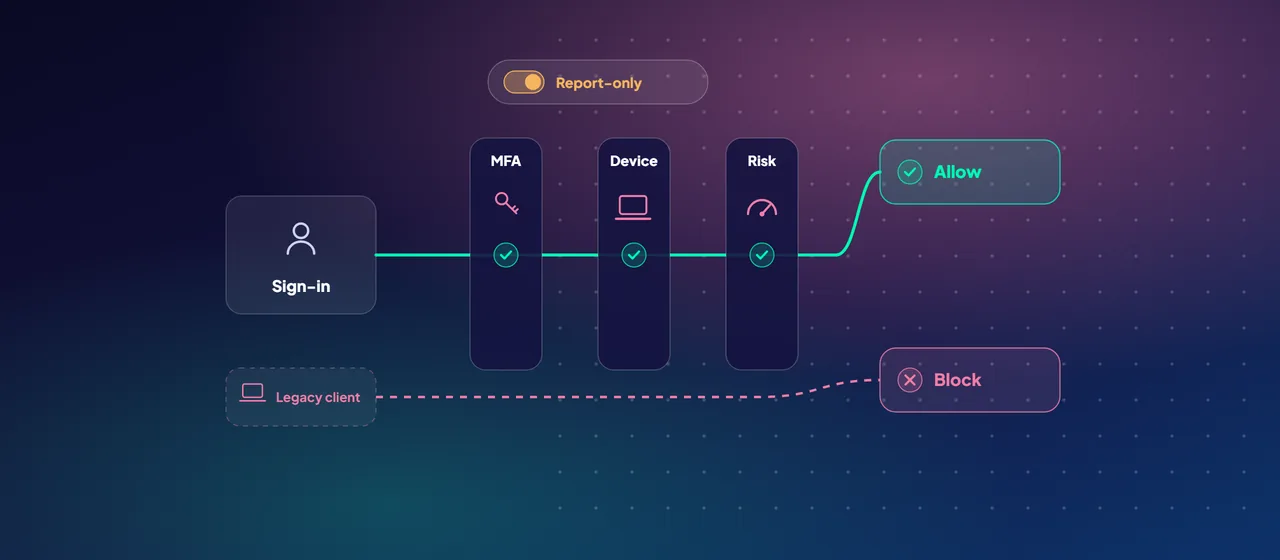
Most identity attacks don't break anything. They sign in. A reused password, an old mail protocol that skips multifactor authentication (MFA), or an admin account protected by a text message is often enough. Conditional Access is how Microsoft Entra ID decides, at every sign-in, whether that request should get through.
The problem is rarely the lack of Conditional Access. It's a tenant with a dozen policies that grew over time, with broad exclusions nobody remembers adding. This post sets out a baseline that fits most enterprises, what each policy needs in licensing, and a rollout method that avoids the classic mistake of locking out your own admins.
Before you build: licensing and break-glass accounts
Conditional Access needs Microsoft Entra ID P1. Microsoft 365 Business Premium also includes it. Risk-based policies need Microsoft Entra ID P2, because they rely on Microsoft Entra ID Protection. Device compliance policies need Microsoft Intune. Tenants without P1 can use security defaults, a free fixed set of protections that also blocks legacy authentication.
Before you enable anything, set up emergency access accounts, also called break-glass accounts. Microsoft's guidance is specific:
- Keep at least two, cloud-only, on the *.onmicrosoft.com domain, not synced or federated.
- Protect them with a phishing-resistant method such as a passkey (FIDO2) or certificate-based authentication, different from your normal admin method.
- Put them in a dedicated group and exclude that group from every policy that blocks or restricts sign-in.
- Alert on every sign-in, and test the accounts at least every 90 days.
Also exclude service accounts such as the Microsoft Entra Connect sync account where needed. Where possible, replace service accounts in scripts with managed identities.
The baseline policies
Microsoft groups its Conditional Access templates into sets, and recommends deploying its "secure foundation" set as a group. Here's a baseline built from those templates:
- Require MFA for all users. Apply to all users and all resources. Use the built-in MFA authentication strength rather than the older MFA grant, so you can raise the bar later.
- Block legacy authentication. Block "Exchange ActiveSync clients" and "Other clients". Legacy protocols can't do MFA. Based on Microsoft's analysis, more than 97 percent of credential stuffing attacks and more than 99 percent of password spray attacks use legacy authentication.
- Require phishing-resistant MFA for admins. Target at least the 14 highly privileged roles Microsoft lists, including Global Administrator, Privileged Role Administrator and Conditional Access Administrator. Use the phishing-resistant MFA authentication strength. Admins must register a passkey, Windows Hello for Business or certificate first, or you risk locking yourself out.
- Require MFA for Azure management. This covers the Azure portal, Azure PowerShell and Azure CLI.
- Secure security info registration. Control the conditions under which users can register MFA and password reset methods.
- Require a compliant or hybrid-joined device, or MFA. This is the stepping stone to device-based access. It rewards managed devices without blocking everyone else.
- Require a compliant device for sensitive apps and admins. Only once devices are enrolled in Intune and reporting compliance. Without an Intune compliance policy, this control won't work as intended.
Two details matter. Conditional Access applies to built-in directory roles, not administrative unit-scoped or custom roles. And policies scoped to users don't block service principals. Those need Conditional Access for workload identities.
Add risk-based policies if you have P2
Microsoft Entra ID Protection scores each sign-in and each user for risk, and Conditional Access can act on those scores. Microsoft recommends two separate policies:
- Sign-in risk: at medium or high risk, require MFA through an authentication strength and force reauthentication every time.
- User risk: at high risk, choose "Require risk remediation". Users with passwords complete a secure password change after MFA. Passwordless users have their sessions revoked and must sign in again.
Don't combine both conditions in one policy. Users must already be registered for MFA to self-remediate, and hybrid users need password writeback. Otherwise they're blocked until an admin steps in.
If you still use the legacy risk policies configured inside ID Protection, plan the move now. Microsoft will retire them on October 1, 2026. Recreate them in Conditional Access, test in report-only mode, then disable the old ones.
Check what Microsoft already turned on
Many tenants now contain Microsoft-managed policies. Microsoft creates them in report-only mode and enables them no less than 30 days later unless you turn them off, with notice about two weeks ahead. They include MFA for admins accessing Microsoft admin portals, MFA for all users, blocking legacy authentication, blocking device code flow, and risk-based policies for P2 tenants. Microsoft reports that requiring MFA reduces the risk of compromise by more than 99 percent.
You can't rename or delete these policies, but you can change their state and exclusions. Add your break-glass group to their exclusions. Then decide whether each one stays, or whether you duplicate it and manage your own version.
Roll out in report-only mode
Report-only mode evaluates a policy at every sign-in without enforcing it. Templates create policies in this state by default. Use it for every new policy and every significant change:
- Create the policy in report-only mode with break-glass exclusions in place.
- Watch the results for one to two weeks. Check the report-only tab in the sign-in logs, the policy impact view, which is in preview, and the Conditional Access insights and reporting workbook. The workbook needs a Log Analytics workspace that receives sign-in logs.
- Look for "failure" and "user action required" results that you didn't expect. They show legacy clients, unregistered users and shared accounts.
- Fix the causes, not the policy. Register users, retire old clients, move service accounts to managed identities. Add exclusions only as a last resort, with an owner and an expiry date.
- Switch to On, starting with a pilot group if the impact is large.
One caution from Microsoft: report-only policies that check device compliance can still prompt macOS, iOS and Android users to pick a device certificate. Exclude those platforms from report-only compliance policies until you're ready to enforce.
- 1Create
In report-only mode, with break-glass exclusions in place.
- 2Watch
One to two weeks of sign-in results.
- 3Look
Find unexpected "failure" and "user action required" results.
- 4Fix causes
Register users, retire old clients, use managed identities.
- 5Switch on
Start with a pilot group if the impact is large.
Where to start
Start with a Conditional Access review. Export your current policies, map them against this baseline and the Microsoft-managed policies, check your break-glass setup, and list every exclusion with a reason. From there you can plan the report-only rollout in a few weekly steps. CloudGate runs these reviews with customer identity teams.
Talk to an architect