Microsoft Fabric bills compute differently from most data platforms. You don't pay per query, per job or per user. You buy a capacity, a pool of compute that every workspace assigned to it shares. That makes costs predictable, but it raises two questions every platform owner has to answer: how big should the capacity be, and what happens when demand goes over it?
Size too small and reports slow down or get rejected at the worst moment. Size too large and you pay for idle compute every hour. This post explains how Fabric capacity works and the levers Microsoft gives you to size it and control its cost.
Capacity units and SKUs
Fabric measures compute in capacity units (CUs). Each capacity size, or SKU, has a fixed number of them. F2 has 2 CUs, F64 has 64, and the range runs up to F8192. You buy F SKUs through Azure. Microsoft bills them per second, with a one-minute minimum and no commitment, and the rate depends on the Azure region.
To give a sense of scale: Microsoft's Azure Retail Prices API listed pay-as-you-go Fabric capacity at USD 0.18 per CU hour in East US and USD 0.22 per CU hour in UAE North when we checked in September 2026. An F64 runs 64 CUs, so its hourly cost is 64 times that rate. Prices change and vary by agreement, so confirm yours in the Azure pricing calculator. OneLake storage is billed separately from capacity.
One size threshold matters for licensing more than compute. On F64 and above, users with only a free Fabric license and a Viewer role can view Power BI content. Below F64, every user who views Power BI content needs a Power BI Pro or Premium Per User license. For organizations with many report readers, that can decide the SKU.
Bursting, smoothing and throttling
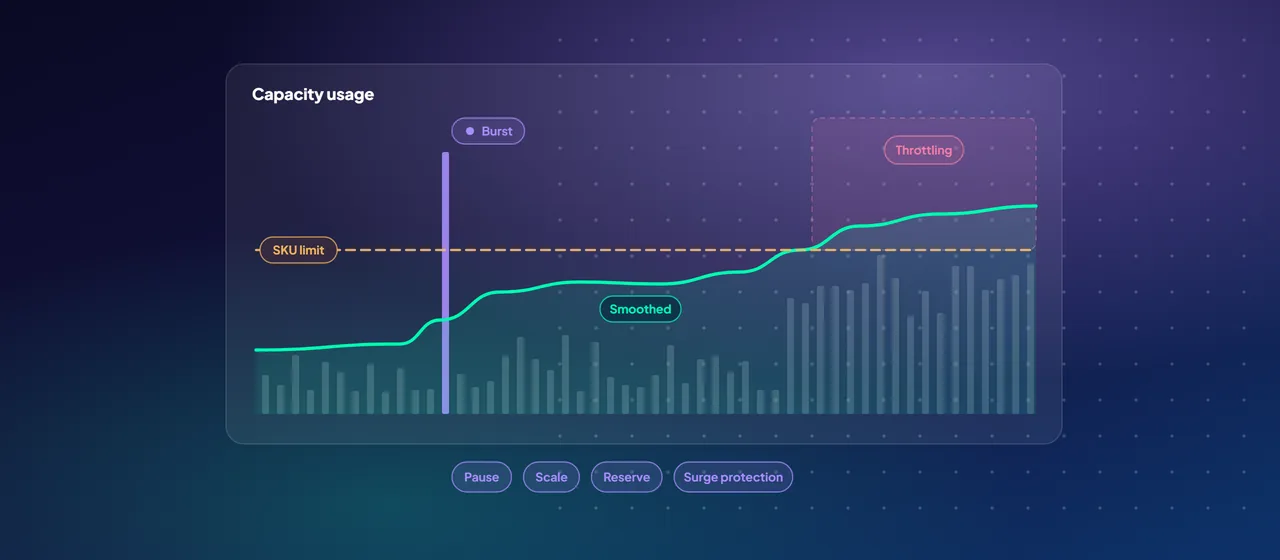
Fabric doesn't cap an operation at the capacity's size. It uses two mechanisms to absorb spikes:
- Bursting lets an operation use more compute than the SKU provides, so it finishes quickly.
- Smoothing spreads the cost of that operation over future 30-second timepoints. Interactive operations, such as report queries, are smoothed over at least 5 minutes and up to 64 minutes. Background operations, such as refreshes, pipelines and Spark jobs, are smoothed over 24 hours.
Smoothing is why a heavy background job doesn't create a sudden spike on its own. Its cost is spread across the next 24 hours, daytime included. It's also why you should size for sustained demand, not the single worst peak.
When smoothed usage keeps exceeding the capacity, Fabric throttles in stages:
- Overage protection: up to 10 minutes of future capacity can be used with no throttling.
- Interactive delay: beyond 10 minutes, new interactive requests wait 20 seconds.
- Interactive rejection: beyond 60 minutes, new interactive requests are rejected. Background jobs still run.
- Background rejection: beyond 24 hours, all new requests are rejected until the excess is paid off.
Operations already running are allowed to finish. Throttling also applies per capacity, so other capacities can keep running normally.
- 1Overage protection
Up to 10 minutes of future capacity: no throttling.
- 2Interactive delay
Beyond 10 minutes: new interactive requests wait 20 seconds.
- 3Interactive rejection
Beyond 60 minutes: new interactive requests are rejected. Background jobs still run.
- 4Background rejection
Beyond 24 hours: all new requests are rejected until the excess is paid off.
The cost levers you control
Microsoft gives capacity owners several levers, and you can combine them:
- Pause and resume. You can pause an F capacity when nobody needs it, such as a development capacity at night, and billing stops. Pausing bills any smoothed usage still outstanding, and content on that capacity is unavailable until you resume. Azure Automation runbooks and REST APIs can schedule this.
- Scale up or down. You can resize a capacity in the Azure portal and pay the new rate from that point. Moving across the boundary between F256 and F512 can briefly interrupt the capacity and cancel running jobs, so do it in a maintenance window.
- Reservations. Committing to one or three years saves about 41% compared with pay-as-you-go, according to Microsoft's Fabric pricing page. You buy reservations in single CUs, and they apply hourly to the capacity usage in that region. Unused reserved CUs in any hour are lost, so reserve your steady baseline and pay-as-you-go for the rest. Reservations don't cover storage or networking.
- Surge protection. Capacity admins can make Fabric reject background jobs earlier than the standard limit, to protect interactive users. They can also cap how much any single workspace may consume in a rolling 24 hours, and mark critical workspaces as exempt.
- Capacity overage (preview). An opt-in setting that pays for usage above the capacity, up to a daily limit, instead of throttling. Microsoft charges it at three times the pay-as-you-go rate and currently recommends it only for F16 and larger.
- On-demand billing for Spark. Spark jobs can run on separate serverless compute billed per use, so they don't consume the shared capacity. Bursting and smoothing don't apply to that compute.
Separate capacities are a lever too. Microsoft's governance guidance suggests splitting capacities by environment, such as development, test and production, for workload isolation and chargeback.
Measure before you decide
The Microsoft Fabric Capacity Metrics app is where sizing decisions should come from. A capacity admin installs it, and it shows:
- A Compute page covering 14 days of utilization, throttling and the operations behind them.
- A Storage page covering 30 days of storage by workspace.
- Timepoint pages that show which items and users drove a spike in a given 30 seconds.
Usage data typically appears 10 to 15 minutes after the activity. Utilization above 100% doesn't by itself mean throttling, so check the throttling charts before you scale. The app doesn't send alerts, but Fabric capacity overview events in Real-Time hub can.
A practical sizing process, based on Microsoft's planning guidance:
- Run a representative workload on a trial capacity or a pay-as-you-go F SKU.
- Use the Fabric SKU Estimator (in preview) to get a first estimate for new workloads.
- Read the Capacity Metrics app over at least one full business cycle, including month-end if it applies.
- Tune before you scale. Look for the items that consume the most CUs and fix them first.
- Split capacities where production reporting needs protecting from development or heavy engineering jobs.
- Reserve the baseline once usage is stable, and use pause, scaling and surge protection for the rest.
Where to start
Start with a capacity review. Install the Capacity Metrics app if it isn't already running, collect two weeks of data, and map which workspaces and items drive your peaks. Then decide on sizing, capacity splits and reservations from evidence rather than estimates. CloudGate runs Fabric capacity reviews as part of its data platform work.
Talk to an architect