Invoices arrive as PDFs. Trade documents arrive as scans. Account-opening packs arrive as phone photos of ID cards. Somewhere in the organization, people read each one and retype what they see into another system. It's slow, it's error-prone, and it doesn't scale when volumes spike at month end.
Document processing is one of the most practical uses of AI, because the task is clear and the result is easy to check. This post explains how to automate it with Azure Document Intelligence (now part of Foundry Tools, and formerly Azure AI Document Intelligence and Form Recognizer): which model to use, how to decide what a person still reviews, how to connect it to your workflows, and where your data goes.
What Document Intelligence does
Document Intelligence takes a document and returns structured data. It has three families of models:
- Document analysis models. Read extracts printed and handwritten text. Layout adds tables, selection marks such as checkboxes, and document structure.
- Prebuilt models. These are trained by Microsoft for common document types and return named fields, such as vendor name, invoice total or date of birth.
- Custom models. You train these on your own labeled documents to extract the fields your process needs.
Language support matters in our region. In the current version, v4.0, Read and Layout support Arabic for both printed and handwritten text, and you don't need to specify the language, because the service detects it.
Check your API version. v4.0 (2024-11-30) is the current generally available release. Microsoft has announced retirement of v2.1 on September 15, 2027 and of v3.0 on March 30, 2029, and custom models share the lifecycle of the API version used to train them.
Prebuilt or custom: choosing a model
Start with a prebuilt model whenever one fits. Prebuilt models cover invoices, receipts, identity documents such as passports and ID cards, bank statements, contracts and credit cards. Several others, including the check, pay stub, tax, mortgage and health insurance card models, are designed for US documents. Test prebuilt models on your own samples before relying on them, especially for local document formats.
When no prebuilt model fits, train a custom one. You need as few as five labeled examples of a document type to start. There are two kinds:
- Custom template models suit forms with a fixed layout, such as your own application forms. They train in minutes but need a separate model for each layout variation.
- Custom neural models handle documents that carry the same information in different layouts, and they work on structured, semi-structured and unstructured documents. Microsoft recommends starting with a neural model where your documents' language supports it.
Two more pieces help with real-world inflows. A custom classifier identifies the document type, and can split a combined file into separate documents, before extraction starts. A composed model combines several custom models behind one model ID.
For free-form documents such as letters, policies or complex agreements, also look at Azure Content Understanding, a related Foundry Tools service that uses large language models and doesn't require labeled training data. Its v1.0 API (2025-11-01) is generally available, and a newer API version is in preview. Microsoft's own guidance points to Document Intelligence for standard structured forms and to Content Understanding for unstructured content.
Confidence scores and human review
Automation doesn't mean nobody looks. It means people only look at the documents that need it.
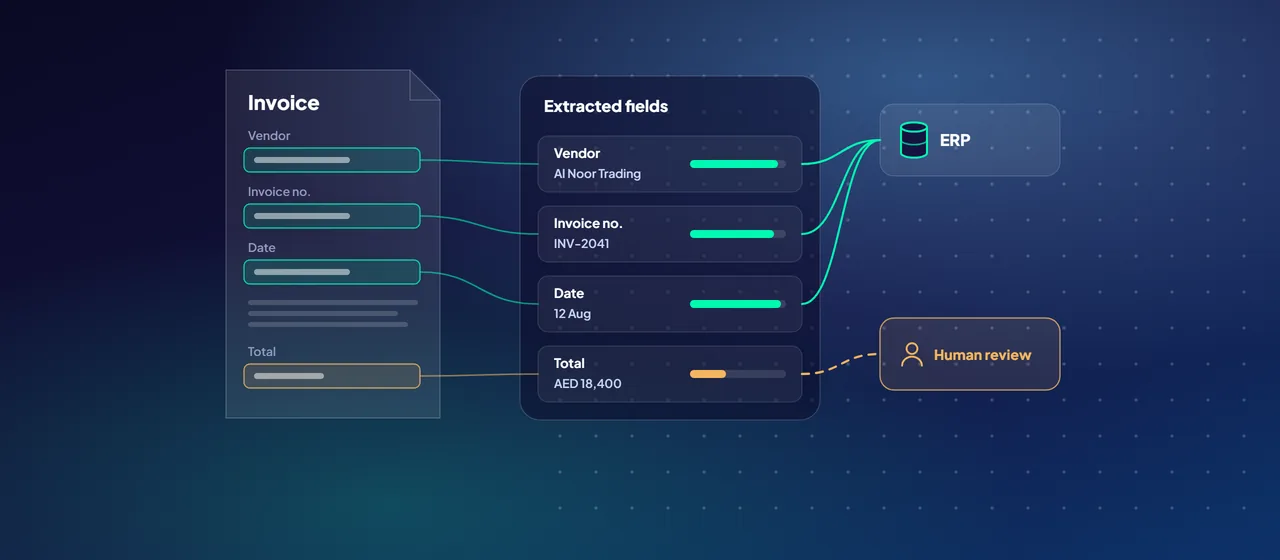
Document Intelligence returns a confidence score between 0 and 1 for extracted words, fields, selection marks and, for custom models, table cells. Microsoft's explanation: a confidence of 0.95 means the prediction is likely correct about 19 times out of 20. Not every field returns a score, so check that the fields you depend on do.
Design the review step around those scores:
- Set thresholds per field, not per document. A misread reference number that a downstream system will reject is cheap. A misread payment amount is not. Critical fields deserve higher thresholds.
- Define three routes. Accept automatically above the threshold. Send to a reviewer below it. Reject documents that are unreadable or of the wrong type.
- Check the text as well as the field. Microsoft notes that text recognition confidence and field extraction confidence are separate. A low text score points to poor scans. A low field score points to a document the model didn't expect.
- Show reviewers the evidence. Give them the extracted value next to the image of the source area, so they check rather than retype.
- Feed corrections back. Corrected documents become labeled training data for the next version of a custom model.
For custom template models, the training output includes an estimated accuracy score. Microsoft suggests aiming for 80% or higher, and close to 100% for sensitive cases such as financial or medical records, with a human review stage for critical workflows. Custom neural models don't report an accuracy score during training, so build your own test set of labeled documents and measure against it.
High-confidence results go straight to the target system, such as your ERP.
A reviewer checks the extracted value next to the image of the source area.
Documents that are unreadable or of the wrong type.
Connecting it to your workflows
Extraction is only useful when the data reaches the system that needs it. You can do this without much custom code.
The Azure AI Document Intelligence connector is available in Azure Logic Apps, Power Automate and Copilot Studio. It has actions to analyze a document with a prebuilt or custom model using the v4.x API, and to classify a document with a custom classifier. Standard workflows in Azure Logic Apps also have a built-in Document Intelligence connector.
A typical flow looks like this:
- A file lands in a SharePoint library, a mailbox or a storage container.
- The workflow classifies it and sends it to the right model.
- It compares each critical field's confidence with your thresholds.
- High-confidence results go straight to the target system, such as your ERP or case management platform.
- Everything else goes to a review queue, with the extracted values attached.
- The workflow logs the outcome, so you can report on how much was automated.
For authentication, prefer Microsoft Entra ID or a managed identity over API keys where the connector supports it. The managed connector accepts a managed identity in Logic Apps only.
Data residency and retention
Regulated organizations need clear answers about where documents go. According to Microsoft:
- Documents are processed in the same region where you created the Document Intelligence resource.
- Submitted documents and analysis results are stored temporarily in that region and deleted automatically 24 hours after the operation completes. You can delete them sooner with the Delete Analyze Result API.
- Training data stays in your own Azure Blob Storage, and trained custom models are stored in the same region as the resource.
If documents can't leave your premises, Document Intelligence also runs in Docker containers. The v4.0 containers cover the Read and Layout models, and the v3.1 containers add ID, receipt and invoice models. Standard containers still send billing information to Azure. Disconnected containers, which run fully offline, require an approved application to Microsoft and a commitment tier plan, and access is limited to organizations that meet Microsoft's criteria.
Before you commit, confirm that the region you need offers the models and features your process depends on.
Where to start
Pick one document-heavy process with steady volume and a clear owner, such as supplier invoices or customer onboarding forms. Collect a representative sample, including the poor scans, and measure how prebuilt or custom models perform on it before agreeing thresholds with the business. CloudGate runs short document automation pilots that end with measured accuracy and a review design your auditors can follow.
Talk to an architect
![A question goes to a search index, which retrieves passages the user may read while a finance passage is trimmed as no access; the answer cites its sources as [1] and [2].](/images/v2/blog/grounded-ai-assistants-rag-1280.webp)