Many organizations own Microsoft Intune licenses long before they use Intune well. Devices get enrolled one way in one department and another way elsewhere, policies pile up without a plan, and nobody can say with confidence which laptops are encrypted, patched and allowed to open company email. Meanwhile, staff read work documents on personal phones that IT has never seen.
A baseline fixes that. It is the small set of enrollment, compliance, security, app and update policies that every device and user gets by default, before any exceptions. This post walks through the pieces in build order and ends with a phased rollout.
Enrollment: decide how devices arrive
Enrollment is how a device comes under Intune management. Intune supports Windows, macOS, iOS/iPadOS, Android and Linux, and allows stricter settings on corporate-owned devices than on personal ones. Decide the model per platform before building anything else.
For new corporate Windows PCs, use Windows Autopilot. Instead of maintaining custom images, Autopilot turns the OEM-installed Windows into a business-ready device: it joins Microsoft Entra ID, enrolls in Intune, applies policies and installs apps, while the user only connects to a network and signs in. There are now two flavors:
- Windows Autopilot (the original) supports Microsoft Entra join and Microsoft Entra hybrid join.
- Windows Autopilot device preparation is the newer profile experience. It supports Microsoft Entra join only and needs recent Windows 11 builds. It adds devices to a security group at enrollment, so selected apps and scripts arrive during setup, and gives near real-time deployment reporting.
For new deployments with no dependency on on-premises Active Directory, start with device preparation and Entra join. Keep hybrid join only where legacy applications still require it.
Personal devices can enroll through the Company Portal app, or skip enrollment and protect only the work apps, as described below.
Device security: compliance and baselines
Compliance and Conditional Access
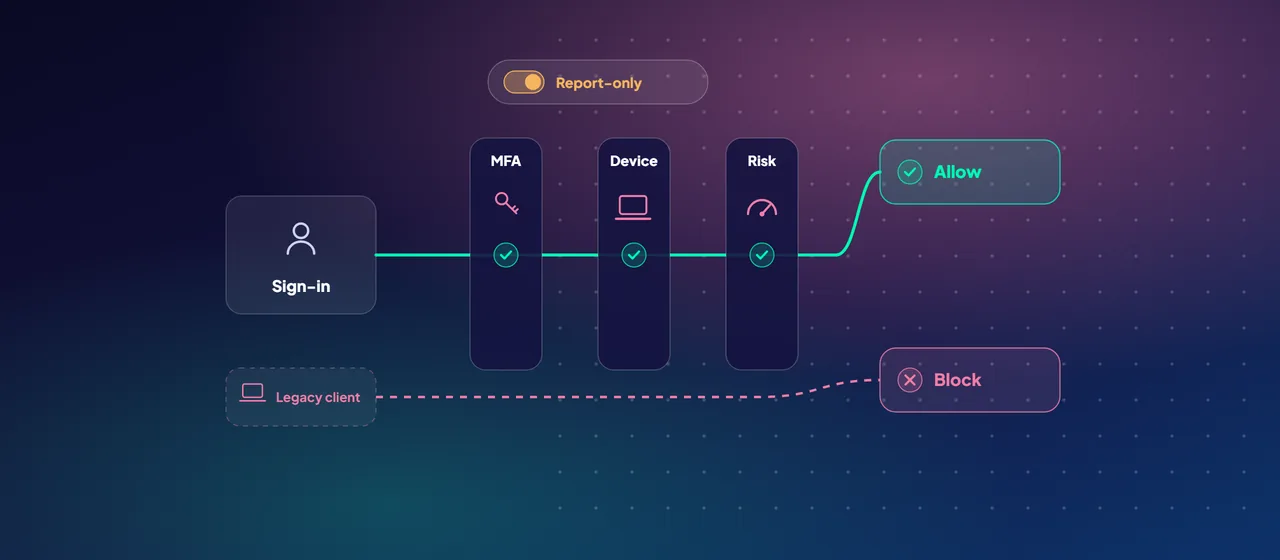
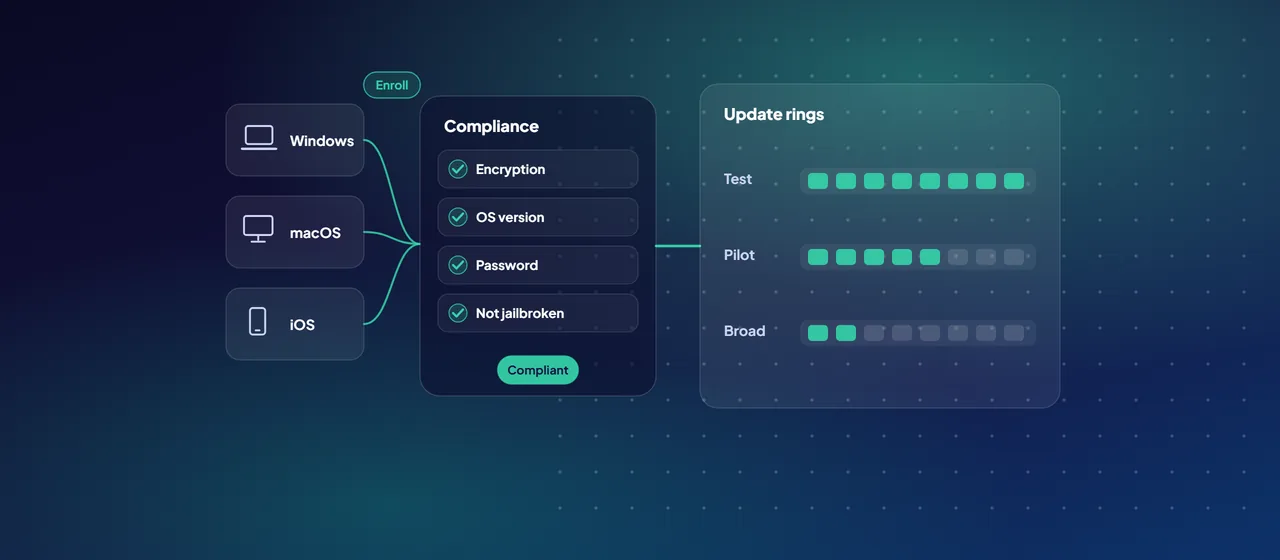
A compliance policy is a per-platform set of rules a device must meet, such as a minimum OS version, encryption, a password, or not being jailbroken or rooted. On its own, compliance is a report. Tied to Microsoft Entra Conditional Access with the grant Require device to be marked as compliant, it becomes a gate: noncompliant devices can't reach email, Teams or SharePoint.
Four settings matter in practice:
- Mark devices with no compliance policy assigned as Not compliant. The default is Compliant. Microsoft advises changing it when you use Conditional Access, so only devices confirmed as compliant get in.
- Compliance status validity period. Devices that fail to report within this window (30 days by default) become noncompliant, so abandoned devices lose access.
- Actions for noncompliance. Each policy marks the device noncompliant, and you can add an email to the user, a remote lock, or marking the device for retirement after a set time. Give users a chance to fix the problem before you block them.
- Roll out Conditional Access in report-only mode first, and always exclude your emergency-access (break-glass) accounts. Microsoft's own guidance follows this pattern.
Security baselines
Intune security baselines are preconfigured groups of Windows settings recommended by Microsoft's security teams. Available baselines include the Security Baseline for Windows 10 and later, Microsoft Defender for Endpoint, Microsoft Edge, Microsoft 365 Apps for Enterprise and Windows 365. For example, the default Windows baseline turns on BitLocker for removable drives, requires a password to unlock a device and disables basic authentication.
Use them as a starting point, not a finished answer:
- Microsoft notes the defaults are, in almost all cases, the most restrictive values. Test them on a pilot group before broad deployment.
- Different baselines can set the same setting to different values, and baselines can overlap with your other configuration profiles. Review for conflicts and keep each setting in one place.
- The Defender for Endpoint baseline is optimized for physical devices and isn't currently recommended for virtual machines or VDI.
- Microsoft doesn't recommend preview baseline versions in production.
Windows 10 reached end of support on October 14, 2025, and Microsoft no longer guarantees Intune functionality on it. A baseline project is a good moment to finish the move to Windows 11.
App protection for BYOD: protect the data, not the phone
Many employees won't enroll a personal phone, and you may not want to manage it. Intune app protection policies (also called mobile app management, or MAM) protect work data inside apps such as Outlook, Teams, Word and OneDrive, with or without device enrollment. Policies apply only to the work account, so personal data is untouched. Typical controls:
- Require a PIN or biometric to open work data.
- Block copy and paste, and save as, from work apps into personal apps and storage.
- Encrypt work data in the app and block access from jailbroken or rooted devices.
- Selectively wipe work data from the apps without touching the rest of the phone.
Microsoft's three-level data protection framework for iOS and Android is a sensible template; Level 2, enhanced protection, suits most mobile users.
Enforce it with Conditional Access using the Require app protection policy grant for iOS and Android. Note a date: Microsoft moved the older Require approved client app grant to read-only on June 30, 2026, and recommends that new policies use only Require app protection policy. Review any older policies that still depend on it. Intune also offers app protection policies for Windows devices, with data protection and health-check settings of their own.
Windows Update rings: patch in waves
Update rings control how Windows updates install: deferral periods, deadlines, restart behavior, active hours and notifications. The standard pattern is several rings assigned to device groups, for example test, pilot and broad. Key settings from Microsoft's reference:
- Quality updates can be deferred 0 to 30 days, feature updates 0 to 365 days.
- Deadlines for quality and feature updates can be set from 2 to 30 days, with a grace period of 0 to 7 days before a forced restart.
- An administrator can pause a ring for up to 35 days, or uninstall the latest quality or feature update if a release causes problems.
Assign rings to device groups rather than user groups, so policy applies without anyone signing in. To lock devices to a specific Windows release, add a feature update policy and set the ring's feature update deferral to 0 so the two don't compete. If you use Windows Autopatch, the service creates and maintains its own rings, and Microsoft advises against assigning custom rings to those devices.
Rolling it out in phases
Microsoft's Intune planning guide recommends a staged approach, and it is the part teams most often skip. A practical sequence:
- Build and test all baseline policies in a small IT test group, with Conditional Access in report-only mode.
- Limited pilot with IT and helpdesk staff. They find problems early and learn to support them. Microsoft advises that pilot users shouldn't be executives or VIPs.
- Expanded pilot across a few representative departments, including remote users and personal-device users for app protection.
- Switch Conditional Access to enforced for pilot users once report-only results look clean.
- Production waves by department or location, leaving time between waves to check enrollment success and helpdesk load.
- Communicate before each wave: what changes, what users need to do, and where to get help.
- 1Test group
All baseline policies, with Conditional Access in report-only.
- 2Limited pilot
IT and helpdesk staff, not executives or VIPs.
- 3Expanded pilot
Representative departments, remote and personal-device users.
- 4Enforce
Conditional Access on for pilot users once results look clean.
- 5Production
Waves by department or location, with time between them.
Where to start
Start with an assessment of what you have today: current enrollment methods, existing policies and conflicts, Conditional Access coverage, and how many devices are already compliant. Then build the baseline in a test group and run a limited pilot with IT before any user notices a change. CloudGate runs these Intune assessments and baseline pilots if you want support.
Talk to an architect