Ask most IT leaders whether their Microsoft 365 tenant is secure and the answer comes quickly: "Yes, we use Microsoft." The platform does include strong security tools. But a license only gives you access to those tools. It doesn't switch them on, fit them to your organization, or keep them current.
Most incidents in Microsoft 365 don't come from missing products. They come from settings nobody changed: an admin account without multifactor authentication (MFA), a legacy mail protocol still open, a file shared with "anyone with the link", a laptop that was never enrolled in management. None of these is a software failure. Each is a configuration gap, and it usually surfaces after something has gone wrong.
Secure by default is a floor, not a ceiling
Microsoft has raised the baseline in recent years. Three mechanisms are worth knowing.
- Security defaults. New Microsoft Entra ID tenants get security defaults at creation. They require every user to register for MFA, require MFA for administrators, block legacy authentication and protect access to Azure management tools. They're a good start for small organizations on the free tier of Entra ID. Microsoft's own guidance says that if you have Entra ID P1 or P2 licenses, you should probably use Conditional Access instead, because security defaults can't be customized.
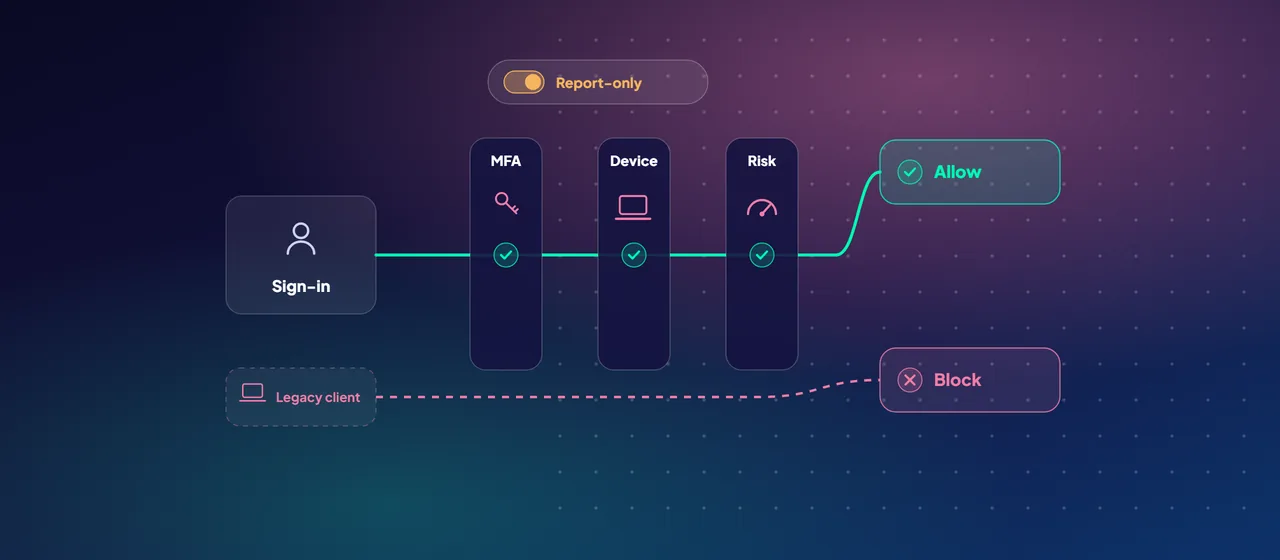
- Microsoft-managed Conditional Access policies. In eligible tenants, Microsoft creates policies such as "MFA for all users" and "Block legacy authentication" in report-only mode. Microsoft turns them on no sooner than 30 days later unless an admin changes them. Watch your Message center, exclude your emergency access accounts, and decide on purpose rather than by default.
- Baseline security mode. The Microsoft 365 admin center now groups recommended settings for Microsoft 365 apps, SharePoint and OneDrive, Teams, Exchange Online and Entra ID in one place. It includes blocking basic authentication, blocking ActiveX controls and restricting user consent to apps. Each setting has an impact report, so you can check for dependencies before you turn it on.
These help. But none of them classifies your data, enrolls your devices, protects your mailboxes to your risk level, or watches for attacks in progress. That work is yours.
Where the gaps usually are
The same kinds of gap show up in many tenants:
- Identity. MFA is enforced for some users but not all. Legacy authentication is still allowed for "that one app". Admin roles are permanently assigned instead of granted just in time.
- Devices. Personal and unmanaged devices can reach corporate email and files with the same access as a managed laptop.
- Email. Defender for Office 365 is licensed, but the Standard or Strict preset security policies were never assigned. Microsoft's documentation notes that both are usually off on your first visit to the page.
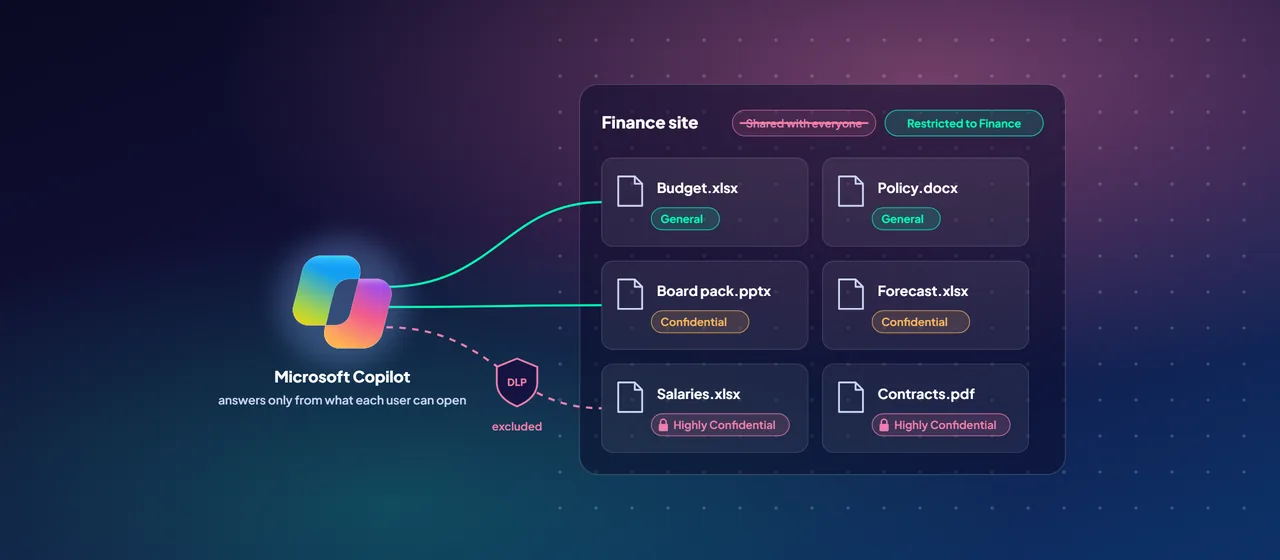
- Data. Sensitive files have no sensitivity labels, there are no data loss prevention (DLP) policies, and SharePoint sites are shared more widely than anyone intended. This matters more once Microsoft Copilot can surface whatever a user already has access to.
- Monitoring. Alerts are raised, but no one is responsible for triaging them.
The layers that make a difference
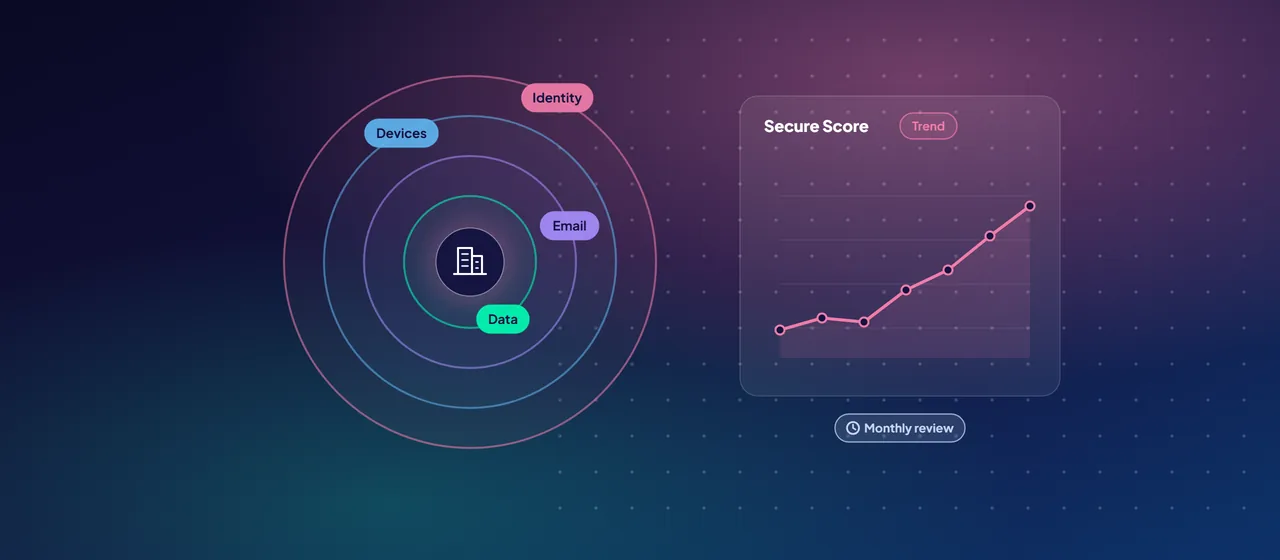
Think of Microsoft 365 security as layers that depend on each other. Microsoft's own Zero Trust deployment plan for Microsoft 365 follows this order.
Identity
Use Conditional Access in Microsoft Entra ID to require MFA, block legacy authentication and apply extra checks for admins. With Entra ID P2, add risk-based policies from Microsoft Entra ID Protection so that risky sign-ins must reauthenticate and high-risk users are blocked or must remediate. Move admins to just-in-time role activation with Privileged Identity Management.
Devices
Enroll devices in Microsoft Intune. Set compliance and app protection policies. Then require a compliant device in Conditional Access for sensitive apps. Microsoft's guidance deliberately puts device enrollment after the first set of identity policies, because those policies don't need managed devices.
Email and collaboration
Assign the Standard or Strict preset security policies in Microsoft Defender for Office 365 to cover anti-phishing, Safe Links and Safe Attachments. Users you leave out of those presets still get basic Safe Links and Safe Attachments protection through the Built-in protection policy, but that shouldn't be your target state.
Data
Use Microsoft Purview Information Protection to classify and label sensitive content, and DLP to stop it leaving. If you're rolling out Microsoft Copilot, Data Security Posture Management (DSPM) for AI in Purview shows how sensitive data interacts with AI tools and where your label and DLP coverage has gaps.
Detection and response
Microsoft Defender XDR correlates signals from endpoints, email, identities and cloud apps into incidents. The value depends on someone acting on them, whether that's an internal team or a managed service.
- 1Identity
MFA, block legacy authentication, extra checks for admins.
- 2Devices
Enroll in Intune, then require compliant devices.
- 3Email
Standard or Strict presets in Defender for Office 365.
- 4Data
Labels to classify, DLP to stop it leaving.
- 5Detection
Defender XDR incidents that someone acts on.
Measure it, don't assume it
Microsoft Secure Score, in the Microsoft Defender portal, turns your configuration into a number and a list of recommended actions. It covers Microsoft Entra ID, Exchange Online, SharePoint Online, Teams, the Defender products and Purview Information Protection, among others. Each action is worth up to 10 points. Some are all-or-nothing, and others give partial credit, such as MFA coverage across your users. You can mark an action as planned, as risk accepted, or as resolved by a third-party tool, so the score reflects reality.
Microsoft is clear that Secure Score is not a measure of how likely you are to be breached. It shows how far you've adopted controls that reduce risk. Use it for direction and trend, not as a pass mark.
For a deeper check, Microsoft publishes the Zero Trust Assessment. It's an open-source, read-only PowerShell tool that tests your tenant against hundreds of configuration items drawn from Microsoft's own baselines and industry standards such as NIST, CISA and CIS. It runs on your machine, keeps its results there, and tells you how to fix what it finds.
A 90-day starting checklist
- Create two cloud-only emergency access accounts and exclude them from Conditional Access.
- Review the Microsoft-managed and Baseline security mode policies in your tenant and decide on each one.
- Enforce MFA for every user and block legacy authentication. Run impact reports first.
- Move permanent admin assignments to just-in-time activation.
- Assign the Standard or Strict preset policies in Defender for Office 365.
- Enroll corporate devices in Intune and require compliant devices for admin portals and sensitive apps.
- Publish a small set of sensitivity labels and one DLP policy for your most sensitive data type.
- Record your Secure Score, assign owners to the top recommendations, and review them monthly.
Security is a process, not a project
People join and leave. New apps get connected. Microsoft adds recommendations and changes defaults. A tenant that was well configured last year can drift quietly. Schedule a monthly review of Secure Score changes, Conditional Access sign-in impact and new Message center notices, and a fuller review every quarter.
Where to start
Start with a Microsoft 365 security assessment. Run the Zero Trust Assessment, review Secure Score and Conditional Access coverage, and agree on a prioritized 90-day plan with named owners. CloudGate runs these assessments for organizations that want an outside view.
Talk to an architect